Sell Moo Ping Controls & Menus
PC and mobile inputs plus where to find Settings, codes, Shop, and Rebirth.
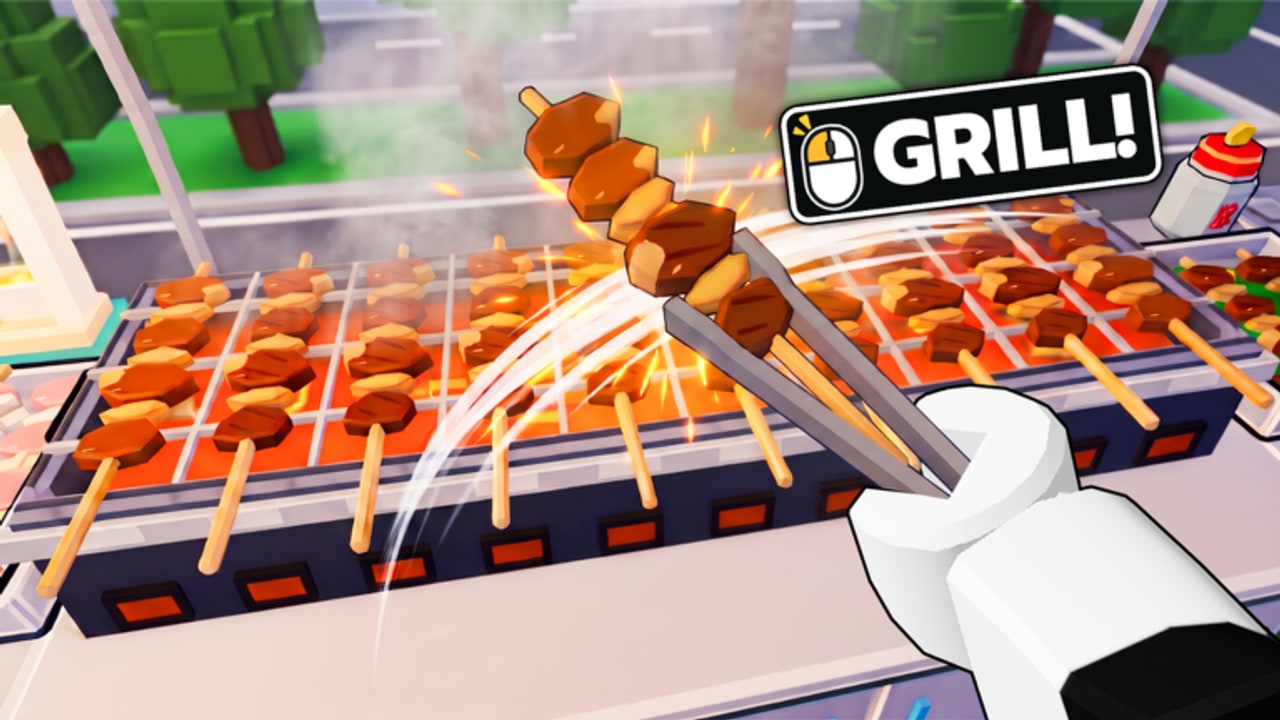
Sell Moo Ping plays like a friendly Roblox tycoon: move your avatar, tend the grill, serve customers, and open a few critical menus for codes, upgrades, and rebirth. This controls guide covers PC and mobile inputs, explains where the important UI panels live, and shares quality-of-life tips so menus never kill your cook–sell rhythm. Pair it with Getting Started if you still need the gameplay loop, and with Codes once you find the redeem box.
Because Roblox experiences can rearrange button skins after patches, treat icon art as flexible—focus on the names: Settings, Shop, Rebirth, and any helpers/pets panels described on Players.
PC controls
Movement & camera
- WASD or arrow keys — move your character around the stall and street-food area
- Space — jump (useful for navigating props or getting a better camera angle)
- Mouse — look / orbit camera; click interactables when prompts appear
- Shift (if enabled in Roblox settings) — sprint to cross larger stall footprints faster as you expand
- Right mouse / scroll — common Roblox camera zoom patterns; zoom out when the factory-scale layout grows
You will spend most of the early game near the grill and customer line. Learn the shortest walking path between cook point and sales point—those steps add up before helpers arrive.
Interaction
- Walk up to the grill, stalls, NPCs, or stations until a proximity prompt appears
- Press the prompted key (often E on PC) to cook, sell, claim, or open a station UI
- Click on-screen buttons for Shop categories and confirm purchases carefully before rebirth nights
If a prompt does not show, step closer, clear other players blocking the spot, or rotate the camera. In busy co-op servers (up to 8 players), stand slightly aside so everyone can reach the grill.
Mobile controls
Movement & camera
- Left virtual joystick — move
- Swipe on the right side of the screen — rotate camera
- Jump button — standard Roblox mobile jump control
- Pinch / Roblox camera gestures — zoom when the stall gets crowded with props
Thumb placement matters: keep movement on the left and interactions on the right so you do not mis-tap purchase buttons while trying to turn the camera.
Interaction on touch devices
- Move until the on-screen Tap / Interact button lights up
- Tap once to cook, sell, or open a station
- For menus, tap the experience’s GUI icons (Settings gear, Shop bag/cart, Rebirth badge—labels vary by skin)
- Type codes with the mobile keyboard; paste if your device allows paste into Roblox text boxes
On phones, open menus during natural pauses—when helpers are cooking or when Security Guard cover is active—so you are not leaving customers ignored for long.
Essential UI menus
Settings (codes live here)
Open Settings from the in-game UI. Inside you should find a codes text box and a Redeem control. This is the only place you should enter promo codes such as MEGA, BUGS, 50LIKES, COOP, 2xupdate, or ZBINGZ. Steps in detail: Codes Hub.
Tips:
- Paste codes to avoid typos
- Respect case—
2xupdateneeds lowercase x - Close Settings quickly during active 2x money windows
- Never enter codes on external sites that ask for your password
Other Settings toggles may include audio, graphics, or experience-specific options. Lower graphics on weak mobile hardware if frame rate hurts timing on the grill.
Shop
The Shop is where cash turns into power: grill upgrades, stall space, helpers, protection, delivery unlocks, pets, and cosmetics. Use the spending order from Upgrade Priority and Earn Cash Fast.
Shop tips:
- Sort mentally by ROI, not by shiny icons
- Confirm prices before tapping buy on mobile
- Avoid cosmetics until throughput upgrades are healthy
- In co-op, appoint a “banker” who owns Shop purchases during serious sessions
Rebirth
The Rebirth panel shows your reset option, multiplier preview, and confirmation. Read Rebirth Guide before your first click. Remember: money and buildings reset; multipliers and progress bonuses stay; Free R7 after 7 rebirths is a creator-noted milestone.
Rebirth UI tips:
- Screenshot or note the multiplier if you like tracking
- Call co-op teammates before confirming
- Do not reopen Shop for weak buys if you already decided to reset
- After rebirth, close the panel and rebuild grill speed first
Helpers, pets, and Guard-related panels
Depending on your progression, additional buttons may manage helpers, pets, delivery, or Security Guard status. Learn their icons once, then muscle-memory them. Deep system advice: Pets and Helpers and the Players Hub.
Co-op control etiquette
With up to eight players:
- Do not stand on the grill interact point if you are not the grill lead
- Call out when you open Rebirth
- Avoid accidental Shop buys on shared strategies—communicate
- On mobile, watch for fat-finger purchases during chaotic customer waves
- Use voice or chat to time
BUGS/ZBINGZredeems
Accessibility & comfort tips
- Increase brightness if the warm BBQ lighting makes prompts hard to see
- Use headphones for cook/sell audio cues if available
- Take breaks; tycoon sessions stretch long with offline earnings waiting afterward
- Bind or practice camera reset if you get lost in expanded stall layouts
- Keep Roblox performance mode reasonable so prompts remain responsive
Troubleshooting controls
Cannot find codes — Open Settings, not Shop. Scroll the Settings panel for the text box.
Prompt missing — Move closer, wait for lag, or ask teammates to clear the spot.
Mobile keyboard covers Redeem — Rotate to landscape or dismiss and reopen the field.
Bought the wrong upgrade — Adjust the next purchase; use it as a lesson for banker roles. Check Tools checklists.
UI missing after update — Recheck Updates; button layouts can move after UPDATE-style patches.
Practice drill (five minutes)
- Move from spawn to grill without sprinting into props.
- Open Settings → type a code → close.
- Open Shop → locate grill upgrades → close without impulse buys.
- Find Rebirth → read multiplier → close without confirming unless ready.
- Return to cook–sell for one uninterrupted minute.
Master that drill and menus stop stealing income.
Related pages
- Getting Started
- Codes Hub
- Rebirth Guide
- Scripts Hub — why you should not need sketchy auto-click tools
- Official Links
Know your inputs, know your menus, and keep the moo ping moving.
Frequently Asked Questions
Quick answers to the most common Sell Moo Ping questions.
Where is the codes box in Sell Moo Ping?
Open the in-game Settings menu, find the codes text field, enter the code, and press Redeem.
What key interacts on PC?
Most Roblox proximity prompts use E on PC, but always follow the on-screen prompt text if it differs.
How do I open Rebirth on mobile?
Tap the Rebirth icon in the experience GUI (badge/label may vary), review the multiplier, and confirm only when ready.
Why can’t I tap Redeem on my phone?
The mobile keyboard may cover the button. Dismiss the keyboard, try landscape mode, or scroll the Settings panel.
Do controls change after updates?
Core Roblox movement stays familiar, but GUI icon placement can shift. Check Updates after major patches.